How to Share a PDF with a QR Code on Printed Materials
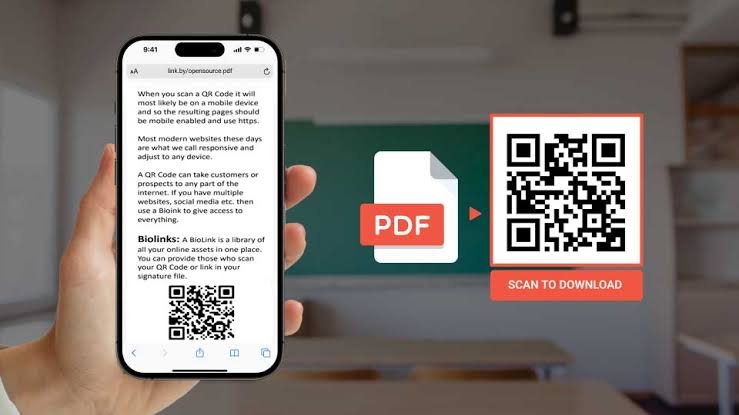
Printed materials like instruction sheets, event programs, product guides, and brochures have one big limitation: they can only hold so much information. Adding a QR code that links to a PDF solves this problem neatly. Readers scan the code with their phone and instantly access the full document, no typing required. This approach works well for trade show handouts, product packaging, conference programs, and assembly guides where space is tight but detail matters.
Before you start, it helps to choose the right tool for generating and hosting your QR code. UseQR offers a dedicated PDF QR code workflow that lets you upload a file, generate a scannable code, and download it ready for print. Using a managed service like this is different from simply linking to a raw PDF stored on a web server, and that distinction matters quite a bit in practice, as explained later in this guide.
Preparing Your PDF for Mobile Readers
A PDF that looks great on a desktop screen can be frustrating to read on a phone. Before you upload anything, take a few minutes to optimize the file for small screens.
Text Size and Layout
- Use a minimum body font size of 11–12 points so text remains readable without zooming.
- Avoid multi-column layouts if possible. Single-column text flows better on narrow screens.
- Keep line lengths short and use clear headings so readers can scan the document quickly.
- Test the PDF in a mobile PDF viewer before finalizing it.
File Size
Large files load slowly on mobile connections, especially at events where Wi-Fi may be unreliable. Aim for a file size under 5 MB for most use cases. You can reduce file size by:
- Compressing images inside the PDF to 96–150 DPI for screen viewing.
- Removing embedded fonts that are not essential.
- Using a PDF compression tool before uploading.
Uploading the PDF and Generating the QR Code
Once your PDF is ready, the next step is to host it and create the QR code. Here is a straightforward process to follow:
- Upload the PDF to https://useqr.com/. The file needs to be publicly accessible via a URL so that anyone who scans the code can open it without logging in.
- Generate the QR code by pointing it to the PDF’s URL. If you use a managed QR service, the platform handles hosting and gives you a short redirect URL rather than a long, messy file path.
- Customize the code if the tool allows it. Adding your brand color or a logo in the center makes the code look intentional rather than generic.
- Download the QR code in a high-resolution format such as SVG or PNG at 300 DPI or higher. This ensures the code prints crisply without pixelation.
Direct PDF Link vs. a Managed QR Service
There is an important difference between linking a QR code directly to a hosted PDF and using a managed QR service.
When you link directly to a PDF URL, the QR code encodes that exact address. If the file moves or the URL changes, the code breaks permanently. Every printed piece that carries that code becomes useless.
A managed QR service uses a short redirect URL. The QR code always points to the same short link, and the destination can be updated through the service dashboard. This is useful if you need to replace a document after printing, though you should verify with your specific provider whether document replacement is supported and how it works before relying on it.
Adding a Clear Label and a Fallback Option
Label the Code
Never place a QR code on printed material without a label. Readers need to know what they will get before they scan. Good label examples include:
- “Scan for the full assembly guide”
- “Scan to view the event program”
- “Scan for product safety information”
Place the label directly above or below the code in a legible font size of at least 8 points.
Provide a Fallback
Not every reader will scan a QR code. Some people prefer typing a URL, and others may not have a QR scanner app. Always include a short, readable web address alongside the code so anyone can access the document manually. A URL shortener can help keep this tidy on small printed pieces.
Testing Before You Print
Testing is the step most people skip, and it is the most important one. Before sending files to the printer:
- Print a single test copy and scan the code with at least two different phones.
- Check that the PDF opens correctly and that text is readable without excessive zooming.
- Test the scan in different lighting conditions, including dim indoor light.
- Confirm the file loads in under five seconds on a standard mobile connection.
If the code fails to scan, check that the printed size is at least 2 cm × 2 cm and that there is enough white space around the edges of the code.
See also: How to Reduce Property Taxes Without Breaking the Law
Conclusion
Sharing a PDF through a QR code on printed materials is a practical way to extend the value of brochures, instruction sheets, event programs, and product guides without cluttering the design. The key steps are preparing a mobile-friendly, reasonably sized PDF, uploading it to a reliable host, generating a high-resolution QR code, labeling it clearly, and always providing a fallback URL. Choosing a managed QR service over a direct file link gives you more flexibility if the document ever needs to change. Test everything on a physical print before your full run, and your readers will have a smooth experience from scan to document.