Common HP Printer Problems and How to Fix Them
HP printers are among the most popular in homes and offices, and for good reason. They’re reliable and easy to set up, and spare parts are widely available. Still, even the best printer acts up eventually. It usually happens when you’re printing something important, like a contract, a school assignment or an invoice.
The good news is that most HP printer problems have simple causes. You can often fix them yourself in a few minutes, without a technician. This guide covers the most common issues, why they happen, and what to do about each one.
1. HP Printer Offline
This is probably the most frustrating message. Your printer is switched on, but your computer says it’s “offline” and refuses to print.
Why it happens: A weak Wi-Fi signal, a changed network, an outdated driver, or the wrong default printer setting.
How to fix it:
- Restart the printer, your router and your computer, in that order.
- Check that the printer and computer are on the same Wi-Fi network.
- Open your printer settings and make sure “Use Printer Offline” is not ticked.
- Remove the printer and add it again, or reinstall the latest driver from HP’s website.
2. HP Printer Not Printing at All
If you press print and nothing happens, don’t panic. Start with the basics.
Common causes:
- A stuck job in the print queue
- Low or empty toner or ink
- A loose USB or network connection
- The wrong printer selected as default
Quick fix: Cancel all documents in the print queue, restart the printer and try a test page. If the test page prints, the problem is in your computer’s settings, not the printer itself.
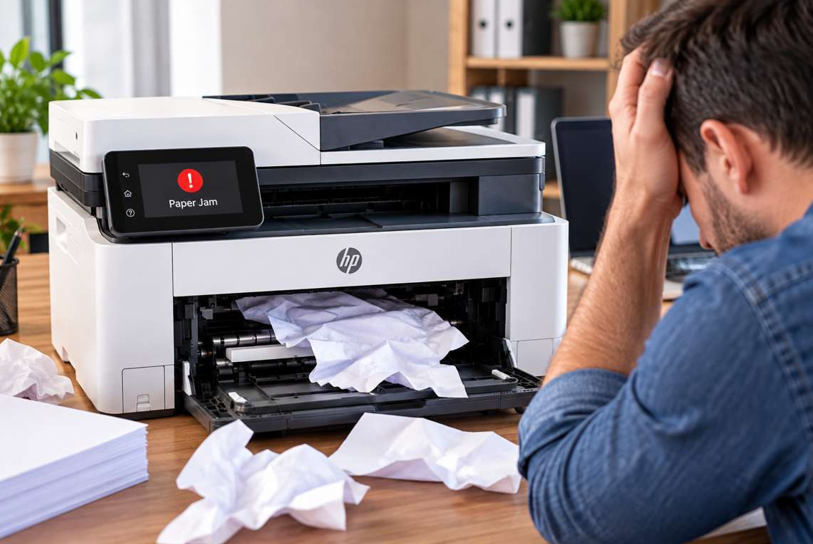
3. Paper Jams
Paper jams happen to every printer owner. They’re usually caused by cheap or damp paper, overfilled trays, or small torn pieces left inside from a previous jam.
How to clear a jam safely:
- Turn off the printer and unplug it.
- Open the rear and front access doors and gently pull the paper out in the direction of the paper path. Never yank it.
- Check carefully for small scraps.
- Fan the paper before reloading it, and don’t overfill the tray.
If jams keep happening even with fresh paper, worn rollers may be the cause. That’s a job for a technician.
4. Blank Pages or Faded Prints
When your printer produces empty pages or washed-out text, the toner is the first thing to check.
Possible reasons:
- The toner cartridge is nearly empty
- The protective seal or tape was never removed from a new cartridge
- A poor-quality or incompatible cartridge
- A cartridge that isn’t seated correctly
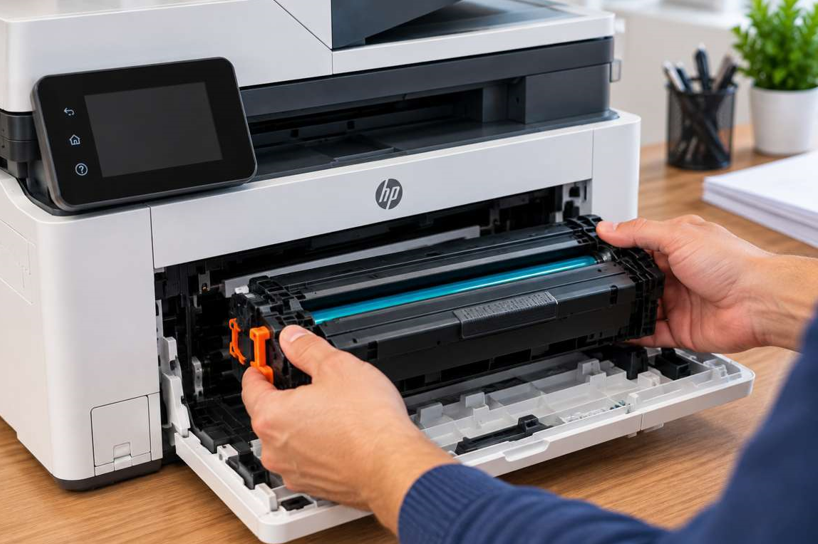
Take the cartridge out, gently rock it side by side to redistribute the toner, and put it back. If the prints are still faint, it’s likely time for a replacement. Choosing genuine, high-quality HP toner cartridges gives you sharper text, consistent color and fewer surprises. Cheap cartridges often cause exactly the problems you’re trying to solve.
5. Streaks, Lines and Smudges on Paper
Vertical lines or dirty marks on your pages are annoying and make your documents look unprofessional.
Typical causes:
- Dust or toner buildup inside the printer
- A damaged or leaking toner cartridge
- A dirty or worn fuser or drum
- Low-quality paper
What to try: Run the printer’s built-in cleaning cycle from the settings menu. If the lines remain, wipe the accessible areas with a soft, lint-free cloth (with the printer unplugged), then try a new cartridge. If streaks continue after that, the issue is likely inside the machine.
6. HP Printer Not Recognizing the Toner Cartridge
Sometimes your printer shows an error saying the cartridge is missing, incompatible or damaged, even though you just installed a new one.
Steps to try:
- Remove and reinsert the cartridge firmly until it clicks.
- Clean the metal contacts gently with a dry, lint-free cloth.
- Confirm the cartridge model matches your printer.
- Restart the printer after installing.
Using the wrong model is one of the most common reasons for this error. Always check your printer’s exact model number before buying a replacement.
7. Slow Printing
If your printer takes forever to start or finish a job, look at the print quality settings first. “Best” or “High” quality modes can slow things down considerably. Large image-heavy files, weak Wi-Fi and outdated firmware are also common culprits. Switching to “Normal” mode, updating your firmware, or connecting through Ethernet or USB can make a noticeable difference.
8. Wi-Fi Connection Drops
HP printers sometimes lose their wireless connection after a router restart or power cut. Print a network configuration page to check the printer’s status, then reconnect it using the HP Smart app. Placing the printer closer to the router also helps.
See also: How a Business Attorney Greenville SC Can Help Your Business
Simple Habits That Prevent Most Problems
A little routine care goes a long way:
- Use good-quality paper and store it somewhere dry.
- Keep the printer in a clean, dust-free spot away from direct sunlight.
- Print at least a few pages every week so the printer doesn’t sit idle.
- Update drivers and firmware regularly.
- Use reliable, correctly matched cartridges.
When Should You Call a Professional?
Home fixes work well for software glitches and small issues, but some problems need expert hands. Consider calling a technician if you notice:
- Strange grinding or clicking noises
- Repeated paper jams even after cleaning
- Error codes that don’t clear after a restart
- Burning smells or overheating
- Prints that stay poor even with a new cartridge
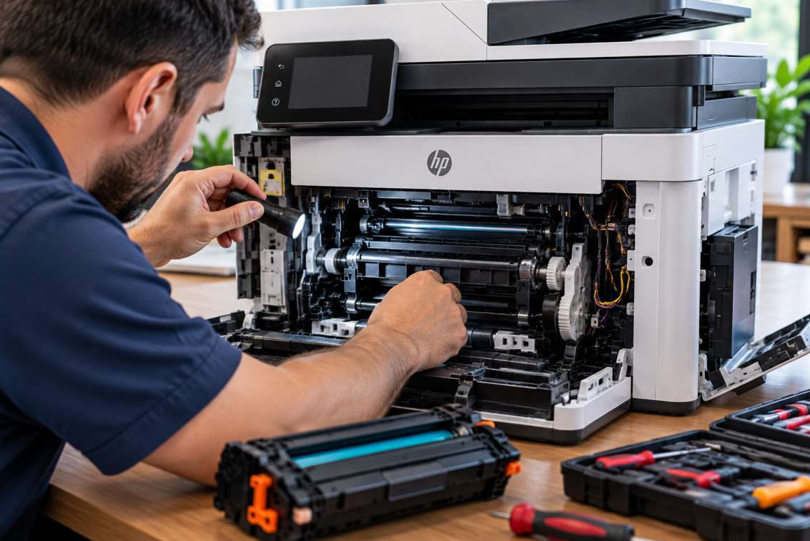
Trying to open internal parts without training can turn a small repair into an expensive one. If you’re dealing with any of these, a trusted HP printer repair in Dubai service can diagnose the fault properly and get your printer running again, often much faster and cheaper than replacing the whole machine.
Final Thoughts
Most HP printer problems, from offline errors to blank pages and paper jams, can be solved with a few patient troubleshooting steps. Start with the simple checks, keep your printer clean, and use the right cartridges. When the problem goes deeper than a quick fix, don’t struggle with it. Professional help protects your printer and saves you time.