How to Auto-Transcribe Conversations With an AI Note Taker Device
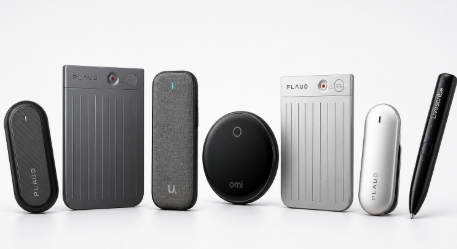
Omi is a wearable AI pendant that auto-transcribes conversations in real time, then turns those transcripts into searchable notes, tasks and reminders inside its companion app. Setup takes about 10 minutes: pair the pendant over Bluetooth, grant microphone permission, and every conversation from that point forward gets captured, transcribed and organized without you touching a recorder or a notepad. This guide walks through the exact steps to go from unboxing to a fully automated note-taking workflow in 2026.
Most people trying to fix their note-taking problem in 2026 are stuck between two bad options: typing notes while half-listening to a conversation, or trusting memory and losing half the detail by end of day. An AI note taker device solves this by recording and transcribing passively, so the person wearing it stays present in the conversation instead of playing stenographer. This guide covers the full setup process for an AI note taker device, the mistakes that break auto-transcription for new users, and how to get from raw transcript to usable task list without manual cleanup.
What You’ll Need
- An Omi pendant, charged and within Bluetooth range of your phone
- A smartphone with the Omi app installed and Bluetooth enabled
- Microphone and Bluetooth permissions granted at the OS level
- A quiet first session to confirm transcription is working before relying on it in a real meeting
- Wi-Fi or cellular data for the app to sync and process transcripts
Step 1: Pair the Pendant Over Bluetooth
This step connects the physical device to the app that does the transcription work. Open the Omi app, tap the pairing prompt, and hold the pendant within a few feet of the phone. Bluetooth Class 2 devices, which cover most wearables including Omi, have an effective range of roughly 33 feet (10 meters) per the Bluetooth Special Interest Group’s published specifications, so pairing itself should take seconds once the app detects the device.
Confirm the pairing succeeded by checking the connection status indicator inside the app before moving forward. The common mistake here is trying to pair with Bluetooth already connected to another device (headphones, a smartwatch) — disconnect competing Bluetooth connections first if pairing stalls.
Step 2: Grant Microphone and Background Permissions
An AI note taker device only captures conversation when the phone allows it to listen continuously, including when the app isn’t in the foreground. On iOS or Android, this means going into system settings and confirming microphone access is set to “always allow” for the Omi app, not just “while using.”
Skipping this step is the single most common reason people think their device “isn’t working” — the pendant is recording, but the phone stops processing audio the moment the screen locks. Expected outcome: the app shows an active listening indicator even when your phone is in your pocket.
Step 3: Run a Test Conversation Before a Real Meeting
Before trusting Omi in front of a client or a patient, run a five-minute test conversation with a colleague or on speakerphone with yourself. This confirms audio capture, transcription accuracy, and sync are all working end to end.
Check the transcript that appears in the app afterward. It should show speaker-separated text within a minute or two of the conversation ending. If the transcript is empty or badly garbled, it’s almost always a permissions or placement issue (pendant covered by a scarf or jacket collar muffles the mic) rather than a transcription failure.
Step 4: Wear the Pendant Through Real Conversations
This is the step that actually replaces manual note-taking, and it’s where an AI note taker device earns its place over a phone voice memo app. Clip or wear Omi visibly during sales calls, patient consults, technician site visits or team meetings — no button to press, no app to open, the pendant captures continuously.
For healthcare workers specifically, note that HIPAA generally requires patient awareness and, in many cases, consent before conversations involving protected health information are recorded — build a quick verbal disclosure into your routine ( “I’m using an AI note taker to keep accurate records” ) rather than relying on silent capture. For sales and field teams, the same disclosure habit protects you legally in two-party consent states. Expected outcome: a full transcript of the conversation appears in the app automatically once you’re back in Bluetooth or data range.
Step 5: Let the App Auto-Generate Tasks and Memories
This is the step that turns a transcript into something you’ll actually use again. Once a conversation syncs, Omi’s app processes it into structured notes and pulls out action items — a technician’s “order the replacement part” or a sales rep’s “send pricing by Friday” becomes a task automatically, without you re-reading the whole transcript to extract it.
Open the Memories or Tasks section of the app after each synced conversation to review what got pulled out. The common mistake at this stage is treating the auto-generated tasks as final without a quick scan — spend 30 seconds confirming nothing important got missed, especially on longer multi-topic conversations.
Step 6: Search and Organize Past Conversations
The payoff of auto-transcription is retrieval, not just capture. Use the app’s search to pull up any past conversation by keyword — a client name, a part number, a topic — instead of scrolling through a notes app trying to remember which day you discussed it.
This is the difference between a wearable AI pendant and a plain voice recorder: a recorder gives you audio files you’ll never re-listen to, while an AI note taker device gives you a searchable, structured archive. Expected outcome: finding a specific detail from a conversation three weeks ago in under 10 seconds.
Troubleshooting and Common Mistakes
- Transcript is blank after a conversation — check that background microphone permission is still set to “always allow”; OS updates sometimes reset this.
- Speaker labels are mixed up — this happens most in loud rooms or overlapping speech; keep the pendant unobstructed and facing the conversation for best speaker separation.
- Pendant disconnects mid-meeting — move the phone closer; walls and pockets can cut into the ~33-foot Bluetooth range.
- Tasks aren’t generating from transcripts — confirm the app has synced (requires a data or Wi-Fi connection); tasks generate after sync, not in real time.
- Battery dies mid-day — charge the pendant nightly like any wearable; continuous listening draws more power than passive standby.
- Forgot to disclose recording — build the disclosure line into your opening, especially in two-party consent states or clinical settings.
Tools and Resources
- Omi pendant + app — the AI note taker device covered in this guide; handles capture, transcription, task generation and search in one system.
- Your phone’s native calendar app — useful for cross-referencing auto-generated tasks against meeting times, though it doesn’t do any transcription itself.
- A shared task manager (whatever your team already uses) — export or copy Omi-generated tasks here if your workflow requires a central board rather than the app’s own task list.
See also: Understanding the Process of Establishing an International Business
FAQ
Do I need to press a button to start recording with an AI note taker device?
No. Omi is built to capture passively once paired and permissioned — there’s no record button to remember to hit before a conversation starts.
How accurate is the auto-transcription?
Accuracy depends heavily on background noise and microphone placement, which is why Step 3 (a test conversation before real use) matters — confirm quality in your typical environment before relying on it for client or patient conversations.
Can Omi tell different speakers apart in a transcript?
Yes, transcripts are speaker-separated under normal conditions, though heavy overlap or a very loud room can blur separation, per the troubleshooting notes above.
Is it legal to record conversations with a wearable AI pendant?
Consent laws vary by state and by context (healthcare has its own HIPAA-related disclosure expectations), so build a verbal disclosure into your routine rather than assuming silent capture is fine everywhere.
What happens to the transcript if I lose Bluetooth or data connection?
The pendant continues capturing; syncing and task generation resume once the phone reconnects to Bluetooth or data, so nothing is lost, only delayed.
Can auto-generated tasks be edited if the AI note taker device pulls out the wrong action item?
Yes — review the Memories or Tasks section after each synced conversation and edit or delete anything that doesn’t match what was actually said.
Next Steps
Getting an AI note taker device working well is less about the hardware and more about the habits around it: permissions set correctly, a disclosure line you actually say out loud, and a quick daily scan of auto-generated tasks. Once those three habits are in place, Omi turns every conversation you’re already having into a searchable record and a task list you didn’t have to build by hand — the entire point of moving off manual note-taking in the first place, in 2026 and beyond.